
Group Chat for Staffing Agencies. One conversation for everyone on the job.
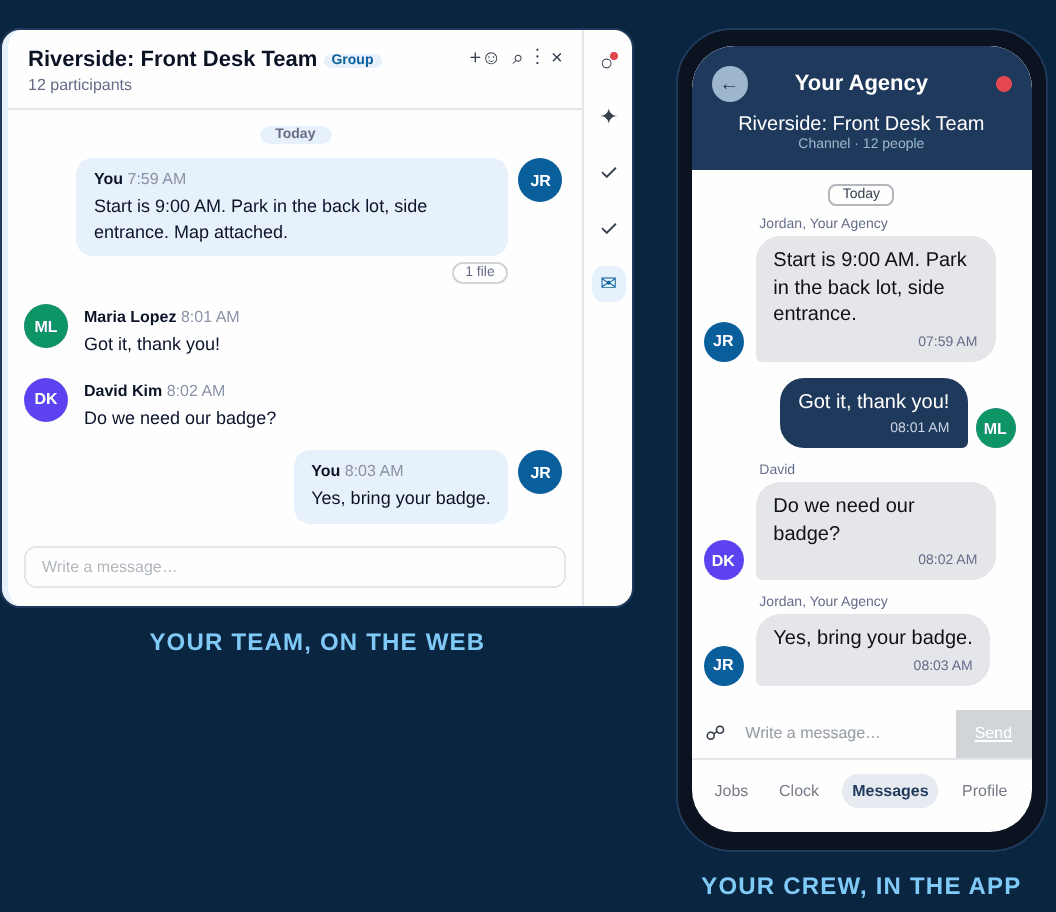
Channels puts your team, your Crew and your client in one conversation inside NextCrew. Updates reach everyone at once, and the conversation stays with your agency, not on someone's personal phone.
Everyone
Your team, your Crew and your client
Where they are
Web, the Crew app and email
Agency-owned
Only your team creates channels
Why Do Job Updates Get Lost Today?
Because most agencies run job communication through group texts on personal phones. It works until the coordinator is off, the Crew changes, or the client needs the same update.
Stuck on one phone
When the coordinator who started the group text is off, nobody else on the team can see it or answer.
The wrong people in the thread
Crew Members who came off the job keep getting updates, and the client is on a separate thread.
One update, sent three ways
Text the Crew, email the client, tell the team. Every extra step is a chance for someone to miss it.
How Does Channels Work?
Your team creates a channel, picks who is in it, and everyone talks in one place. Three steps, no new app for anyone.
Create a channel
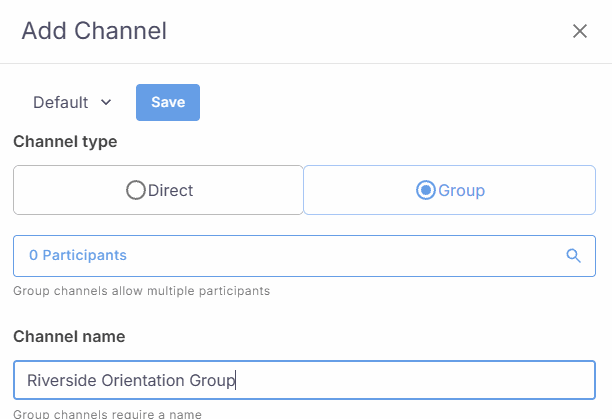
Open the chat icon on any screen, or start from an order or a job. Choose a direct channel for a one-to-one conversation, or a group channel for everyone on the job, and give it a name your team will recognize.
- Direct or group, your choice
- Start from any screen, an order or a job
- Only your team can create channels
Pick exactly who is in it
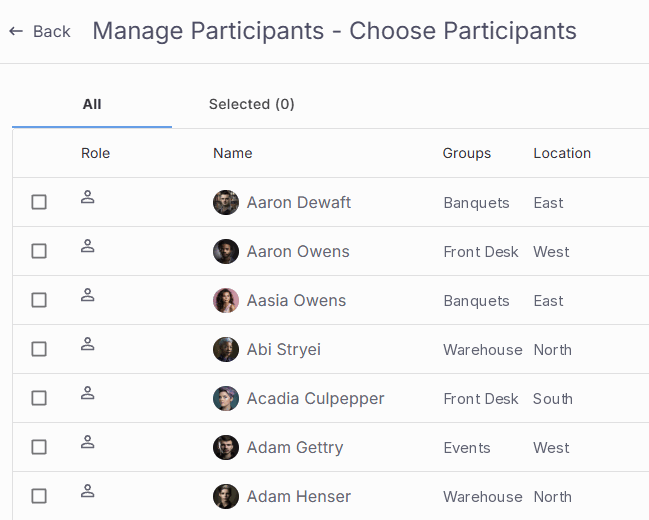
Choose participants from one list. You see each person's role, groups and location as you pick, and the Selected tab shows who is in before you save.
- Your team, Crew Members and client contacts
- Check your list on the Selected tab
- Remove someone and the channel disappears from their app
Everyone stays on the same page
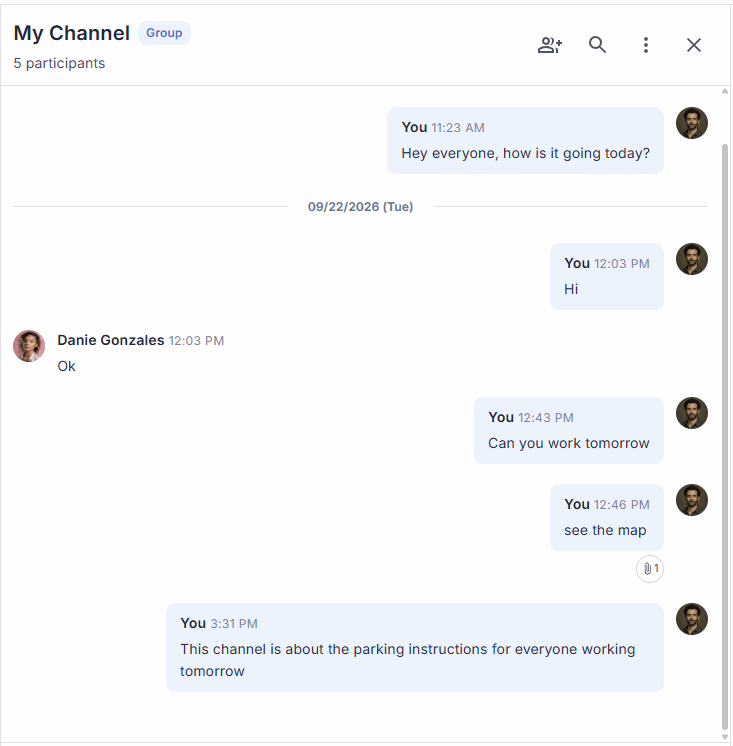
Post updates, share files like a site map, and add people as the job changes. Crew Members reply in the NextCrew app under Messages, then Channels. Clients get an email and can reply.
- Share files with everyone at once
- Search the conversation
- Add people at any time
Built For Everyone In The Conversation
| Who | How They Use It | What They Get |
|---|---|---|
Coordinators |
Start a channel for the job and post one update for everyone on it. |
One message reaches the whole job, and the rest of the team can pick up the conversation. |
Crew Members |
Read and reply in the NextCrew app, under Messages, then Channels. |
Updates arrive as a phone notification, plus a text if your agency has texting turned on. |
Clients |
Get an email when there's a message and reply into the same conversation. |
The same updates as your team and Crew, without a separate thread. |
Before You Start Your First Channel
Your team stays in control
Only your team creates channels and decides who is in them.
Notifications reach the phone
Crew Members get a phone notification, plus a text if your agency has texting turned on.
Your Crew need the latest app
Ask your Crew to update the NextCrew app. Branded apps follow their own release schedule.
Keep what you'll need later
Deleting a channel removes its messages and files for everyone. Keep anything you'll need later on the job or the Crew Member's record.
Watch Channels on a real job
We'll set up a channel with a coordinator, a Crew Member and a client in your demo.
Request a Demo Part ofThe NextCrew Crew app
Jobs, availability, credentials and now Channels, in one app for your Crew.
See HR Self-Service Related readingClosing the communication gap with your Crew
Why updates get missed between the office and the job site, and what fixes it.
Read the articleQuestions Agencies Ask About Channels
From scattered group texts to one conversation your agency owns.
We'll set up a job channel in the demo with a coordinator, a Crew Member and a client, so you can see the whole conversation from every side.